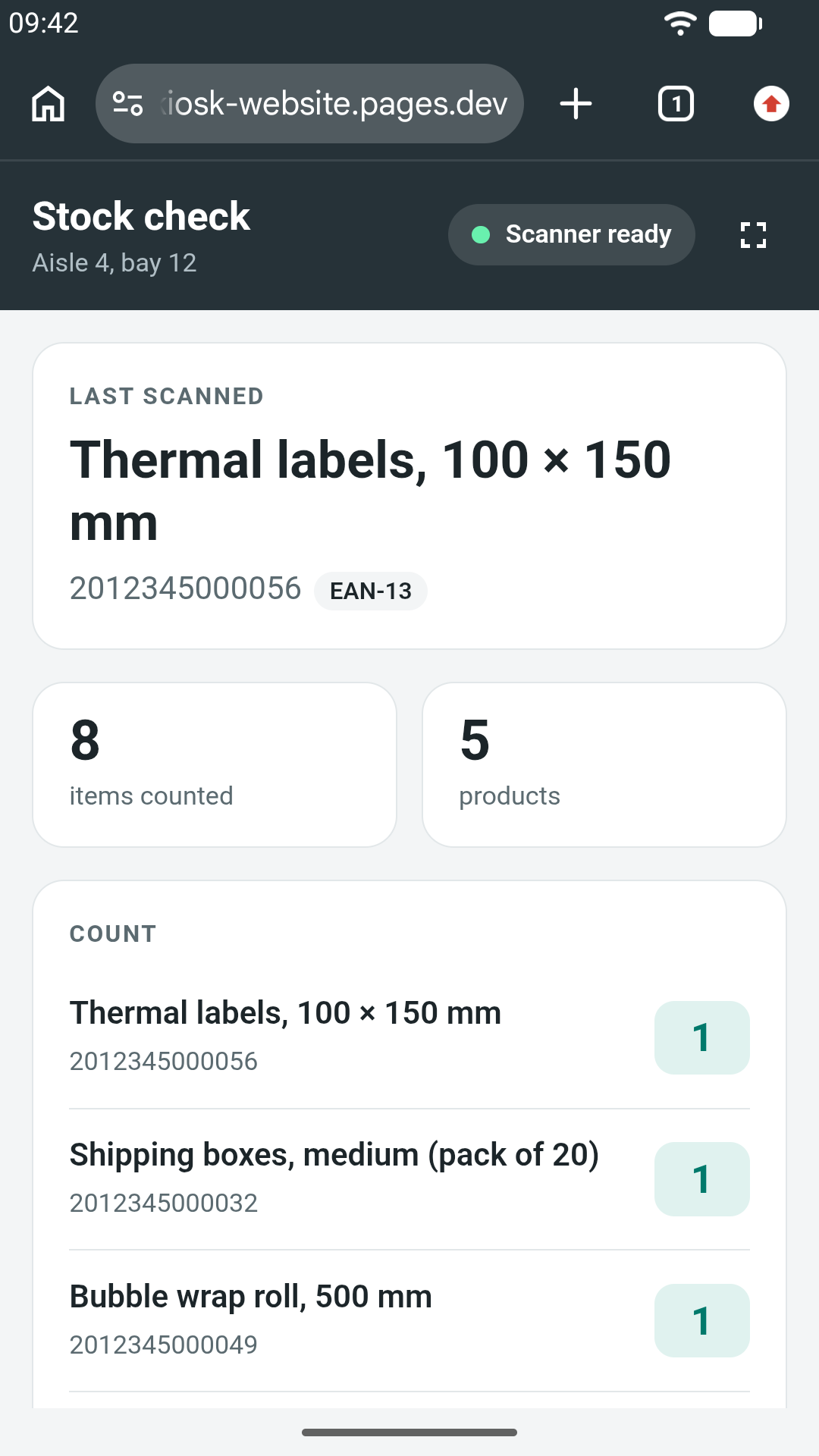
If your team uses a web app on Zebra handhelds, you’ve probably seen it. Someone presses the scan button and the barcode lands in the wrong box. Or the on-screen keyboard pops up and covers half the page. Or the scan simply goes missing.
It isn’t your web app, and it isn’t the scanner. It’s the way the two are joined up, and there are several ways to fix it.
Why it happens
Every Zebra device has an app called DataWedge that decides where scans go. Out of the box, it types each barcode into whatever is on the screen, exactly as if someone had typed it on a keyboard, very quickly.
For a simple form with one box, that’s fine. In a web app with more going on, it causes problems:
- The barcode goes wherever the cursor is. If someone has tapped somewhere else, it ends up in the wrong box, or nowhere at all.
- The keyboard pops up whenever the cursor is in a box, even though nobody needs it.
- Characters can arrive jumbled or go missing when the page is busy, because each one is typed separately.
- Your web app can’t tell a scan from someone typing, so it can’t react to scans differently.
Your options at a glance
| Option | Your web app runs in | Scans typed in? | Cost |
|---|---|---|---|
| Keep it typing, and tune it | Chrome, or any browser | Yes | Free |
| Zebra Enterprise Browser | Enterprise Browser, built on WebView | No | About US$37 per device, per year |
| Kiosk Browser | Kiosk Browser, built on WebView | No | £8.00 per device, once |
| Your own app | Your app, built on WebView | No | Your developers’ time |
| The camera | Chrome, or any browser | No, but it doesn’t use the scanner | Free |
| Barcode Scanner Bridge | Chrome, Edge, Firefox and others | No | £8.00 per device, once |
Keep it typing, and tune it
The free option, and worth trying first if your needs are simple.
- For a page with one box to scan into, your developer can make the page put the cursor in that box when it opens, and stop the keyboard appearing for it.
- If scans come out jumbled, slow the typing down a little. DataWedge has a setting for a short delay between characters, and that’s Zebra’s own advice.
- For a page with no box to scan into, DataWedge has a setting called “Send characters as events”. With it on, the page can listen for scans wherever the cursor is, and your developer adds a few lines to collect them.
The catch: every device needs its DataWedge settings changed, by hand, with Zebra’s StageNow tool or with your device management (MDM). And it’s still typing underneath, so scans can still go astray. Zebra’s guide to these settings has the details.
Use a browser made for scanning
Instead of Chrome, you can run your web app in a browser app that receives scans itself, so nothing is typed.
- Zebra Enterprise Browser is Zebra’s own. Your web app can control the scanner and other Zebra hardware, such as printers. It’s paid for per device and renewed every one, three or five years: resellers list it at about US$37 per device per year. It needs Android 10 or later, it’s made for Zebra devices, and your developer writes for its own commands, which only work in Enterprise Browser.
- Kiosk Browser, our kiosk browser, suits devices that only run your web app. It locks the device to your web app, full screen, and passes each scan straight to your page. It’s £8.00 per device, once.
- Others, such as Ivanti Velocity, do this too.
These browsers aren’t Chrome
Browser apps like these are typically built on WebView: the part of Android that lets an app show web pages inside itself. WebView uses the same engine as Chrome, so most web apps look the same. But it isn’t Chrome, and the differences can catch you out:
- Chrome’s sign-ins don’t come across. People sign in to your web app again inside the browser app, and their Chrome bookmarks and tabs aren’t there.
- Your MDM’s Chrome settings don’t apply. The browser app has its own settings instead.
- Some things only work if the app’s makers built them in, such as uploading a photo, using the camera or downloading a file.
- Some web features are missing altogether, such as notifications and adding your web app to the home screen.
So check your web app does everything it needs to in the browser you choose, and that someone can set that browser up on every device.
Build your own app around your web app
If you have Android developers, they can build a small app that shows your web app, again with WebView, and takes scans straight from DataWedge. Tools such as Capacitor make it easier.
It gives you full control, and your developers can build in whatever WebView leaves out. The catch is that you now own an app: someone has to build it, keep it up to date and get it onto every device.
What about the camera?
Web pages can read barcodes with the device’s camera, with no setup at all. That’s fine for the odd scan on an ordinary phone. On a Zebra it ignores the built-in scanner and the scan button you’ve paid for: it’s slower, it struggles with small or damaged barcodes, and users have to aim the camera at every one.
Keep Chrome, and add Barcode Scanner Bridge
Barcode Scanner Bridge is our app for teams who want to keep Chrome, or Edge or Firefox, and stop the typing altogether. It runs alongside the browser, takes each scan from DataWedge and hands it straight to your web app. Nothing is typed, so no box needs the cursor and the keyboard stays away.
- Your web app stays in Chrome, with everything that comes with it: saved sign-ins, your MDM’s Chrome settings and every web feature.
- On Zebra devices, it can set up DataWedge for you. It works with Honeywell, Datalogic, Panasonic and other makes of scanner too.
- Your developer adds a few lines to the web app:
BarcodeScannerBridge.connect({
  onScan: function (scan) { console.log(scan.data); }
});
- Each device needs the app, installed and opened once. The first time your web app opens, the browser asks whether it may connect, or your IT team can allow it in advance.
- Scans never leave the device, and only the websites you choose receive them.
- It’s £8.00 per device, once, after a 5-day free trial.
Which should you choose?
- A simple form with one box to scan into: keep it typing, and tune it.
- No budget, and you can change DataWedge on every device: keep it typing, with “Send characters as events”.
- Zebra devices only, and your web app needs printers and other Zebra hardware: Zebra Enterprise Browser.
- Devices that only run your web app, locked down: Kiosk Browser.
- Android developers on hand: your own app.
- Keep Chrome, and no more typing: Barcode Scanner Bridge.
Not sure which fits? Tell us what you’re using and we’ll point you the right way.
 Barcode Scanner Bridge