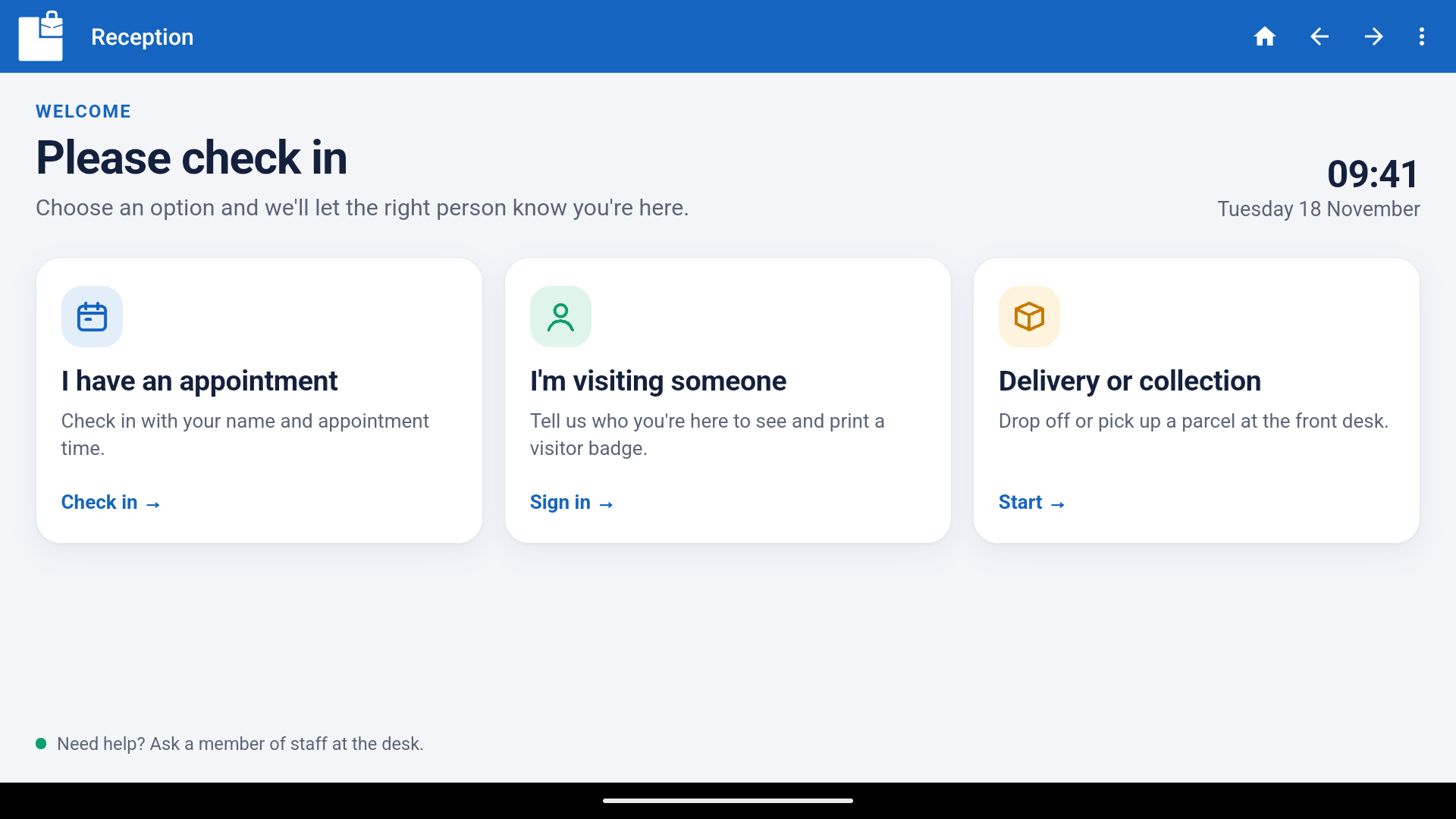
You want a tablet on a stand showing your check-in page, a feedback survey or your menu, and nothing else. Leave Chrome open on it and it won’t last the morning. Someone taps Home, opens YouTube, closes the tab or changes a setting, and the next person finds something else entirely.
Locking it to your website properly takes more than leaving the page open. Here are the ways to do it, and what each one leaves open.
What a locked tablet needs
- Only your website, and the pages you allow.
- No way out: Home, Recents, the notifications and Settings out of reach.
- Full screen, with no address bar, tabs or menus to tap.
- It comes back by itself after a restart or a crash, without anyone visiting it.
- It resets between people, so the next visitor doesn’t see the last one’s details.
Your options at a glance
| Option | Keeps people in | Only your website, full screen | Cost |
|---|---|---|---|
| App pinning, built into Android | No: anyone can unpin it | No: Chrome’s address bar and tabs stay | Free |
| Your MDM’s kiosk mode, with Chrome | Yes | No: you can limit the sites, but the address bar stays | Your MDM |
| Your MDM’s kiosk mode, with a web app | Yes | Mostly: links to other sites open in a Chrome tab | Your MDM |
| Kiosk Browser | Yes, by itself | Yes | £8.00 per device, once |
| Kiosk Browser for MDM | Yes, with your MDM’s kiosk mode | Yes | £8.00 per device, once |
App pinning: built in, and easy to undo
Every Android tablet can pin one app to the screen. Turn on App pinning in Settings (on a Pixel it’s under Security & privacy, More security & privacy; Samsung calls it Pin windows). Then open Chrome on your website, open the Overview screen, tap Chrome’s icon and choose Pin.
- Anyone can unpin it by touching and holding Back and Overview, or by swiping up and holding. Turn on “Ask for PIN before unpinning” so it needs the tablet’s PIN.
- It pins the app, not the website. Chrome’s address bar, tabs and menu all still work, so people can go anywhere.
- Android itself warns that a pinned app may open other apps.
- It’s gone after a restart, and someone has to pin it again.
Fine for a quick demo with someone standing next to it, but not for a tablet left on its own.
Your MDM’s kiosk mode
If your tablets are managed with an MDM (device management such as Microsoft Intune), it can lock them to one app: Android calls these dedicated devices. Home, Recents and the notifications are hidden, people can’t leave the app, and the kiosk comes back after a restart. Setting a tablet up this way starts with a factory reset.
The question is which app shows your website:
- Chrome has no kiosk mode of its own on Android. Your MDM can limit the sites it opens, but the address bar, tabs and menu stay on screen, and nothing resets it between people.
- A web app from managed Google Play turns your website’s address into an app that opens full screen, with no address bar. It still needs Chrome on the tablet, and links to other websites open in a Chrome tab with the address showing.
- Microsoft Edge, set up through Intune, has a kiosk setting that hides its address bar, and a separate setting to clear its history and sign-ins after a time without use.
The catch: you need an MDM, and the right settings in several places (the kiosk, the browser and its list of sites) for each tablet to behave.
Kiosk Browser: a browser made for kiosks
Kiosk Browser is our browser for exactly this. It shows your website full screen, and only the pages you allow.
- It locks the tablet down by itself, with no MDM needed. Set the tablet up with our QR code and Kiosk Browser takes charge of the device: Home and Recents do nothing, and nothing else can be opened.
- Only your website: allow and block lists, your own pages for errors and blocked sites, and a password on its settings.
- It comes back by itself after a restart, and recovers if it crashes.
- It resets between people: after a time without use, it goes back to your start page, and can clear the last person’s sign-ins and form entries.
- Lots of tablets? Manage their settings, updates and screenshots from one place with Remote Management.
- It’s £8.00 per device, once, after a 5-day free trial.
Already have an MDM? Kiosk Browser for MDM
Kiosk Browser for MDM is Kiosk Browser for tablets your MDM already manages. Your MDM installs it from managed Google Play, sends its settings and locks the tablet to it with its kiosk mode. You get Kiosk Browser’s full screen, site lists and reset between people, without changing how you manage your devices. It’s £8.00 per device, once.
Which should you choose?
- A quick demo, with you standing next to it: app pinning.
- You have an MDM, and the address bar on screen is fine: your MDM’s kiosk mode, with Chrome.
- You have an MDM, and your website has no links to other sites: your MDM’s kiosk mode, with a web app.
- No MDM, or you want everything in one app: Kiosk Browser.
- You have an MDM, and want a proper kiosk browser: Kiosk Browser for MDM.
Not sure which fits? Tell us about your tablets and we’ll point you the right way.
 Kiosk Browser