Rugged handhelds and scanners
Your stock or delivery web app, with scans going straight into the page. Works on devices such as Zebra, Honeywell, M3 Mobile, Newland and Urovo.
Built for teams that already manage their devices with an MDM, such as Microsoft Intune. Your MDM installs it, sets it up and, if you want, locks the device to it.
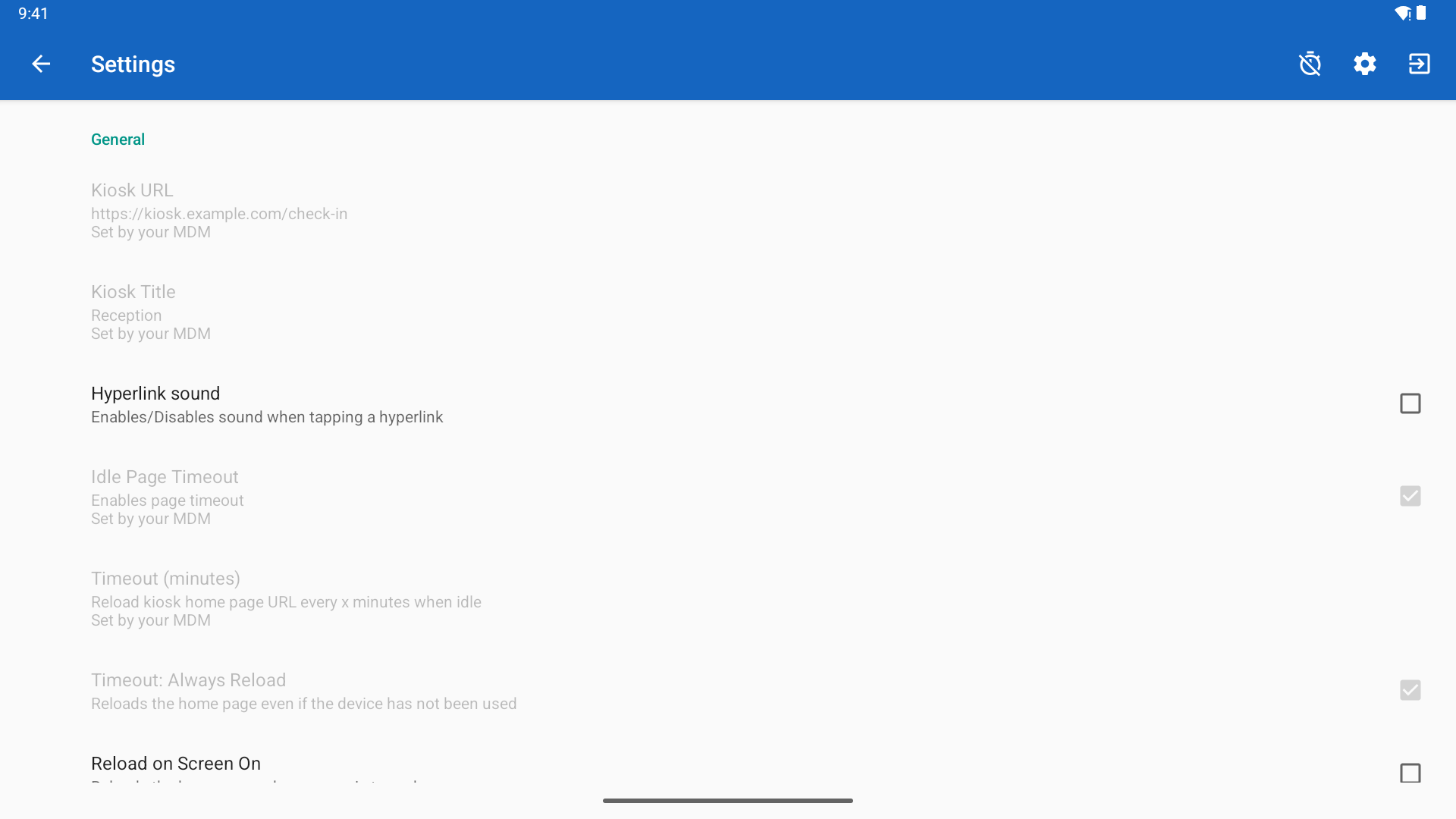
And any other MDM or EMM that supports Android Enterprise managed configuration. Product names are trademarks of their respective owners.
Your stock or delivery web app, with scans going straight into the page. Works on devices such as Zebra, Honeywell, M3 Mobile, Newland and Urovo.
Staff see only your web app, and an idle timeout takes it back to your home page between users.
Check-in, feedback or ordering, locked to your page with your MDM's kiosk mode.
Kiosk Browser with Remote Management gives you everything, from locking the device to managing it. Kiosk Browser for MDM is for teams that already have an MDM, or want to control every part of the setup themselves.
The complete solution, with no MDM needed.
Just the browser, for the MDM you already use.
All prices shown are excluding VAT.
We couldn't fetch a price just now.
Enter how many licences you need (1 or more).
Fetching price...
Buying for an organisation? In the checkout, after entering your email and country, click Add VAT number to put your organisation's name, address and VAT number on the invoice. Missed it? The link in your Paddle receipt email lets you add them afterwards.
We couldn't open the checkout just now. Please try again, or contact us and we'll sort it out. (Error: [[ buyError ]])
Continue to checkout and choose Wire Transfer as the payment method, then enter your organisation's name and address. Paddle, our reseller, will email you a proforma invoice showing the full cost including any tax, which works as a quote.
You don't have to pay it: an unpaid wire transfer order simply expires, and you can come back and pay by card at any time.
Secure payment by Paddle. Buy once, with free upgrades for the lifetime of the product.
Questions about licences? See our Licensing FAQs.
Any MDM or EMM that supports Android Enterprise managed configuration, which some call app configuration or app restrictions. That includes Microsoft Intune, Omnissa Workspace ONE, SOTI MobiControl, Zebra DNA Cloud, 42Gears SureMDM, Ivanti, IBM MaaS360, ManageEngine and Samsung Knox Manage. Most read the app's managed configuration schema and show its settings as a form; with others, you enter each setting's key and value.
No. It works as an ordinary app too. To keep users in it, add it to your MDM's kiosk mode (dedicated device, single-app or lock task mode): it pins itself when it starts, the Home and Recents buttons do nothing, and only your MDM can end kiosk mode. Your MDM stays the device owner; the app never locks the device by itself. Don't use an MDM? Kiosk Browser locks devices down on its own.
Android phones and tablets with Android 7.0 or later. It doesn't run on Android TV. The app is in English.
It works on devices such as Zebra, Honeywell, M3 Mobile, Newland and Urovo. Scans go straight into the field that has focus as keystrokes, or by intent to your Barcode Redirect URL or a JavaScript callback on your page. Camera scanning works on any device with a camera.