Keyboard output
- Scans go into whichever field has focus, or nowhere
- The on-screen keyboard pops up over your page
- Your page has to tell scans apart from typing
- Characters can go missing when the page is busy
Barcode Scanner Bridge sends scans from the built-in scanner on Zebra, Honeywell, Datalogic and other rugged Android devices to your web app in Chrome, Edge or Firefox. No enterprise browser needed, no input field to focus, no on-screen keyboard.
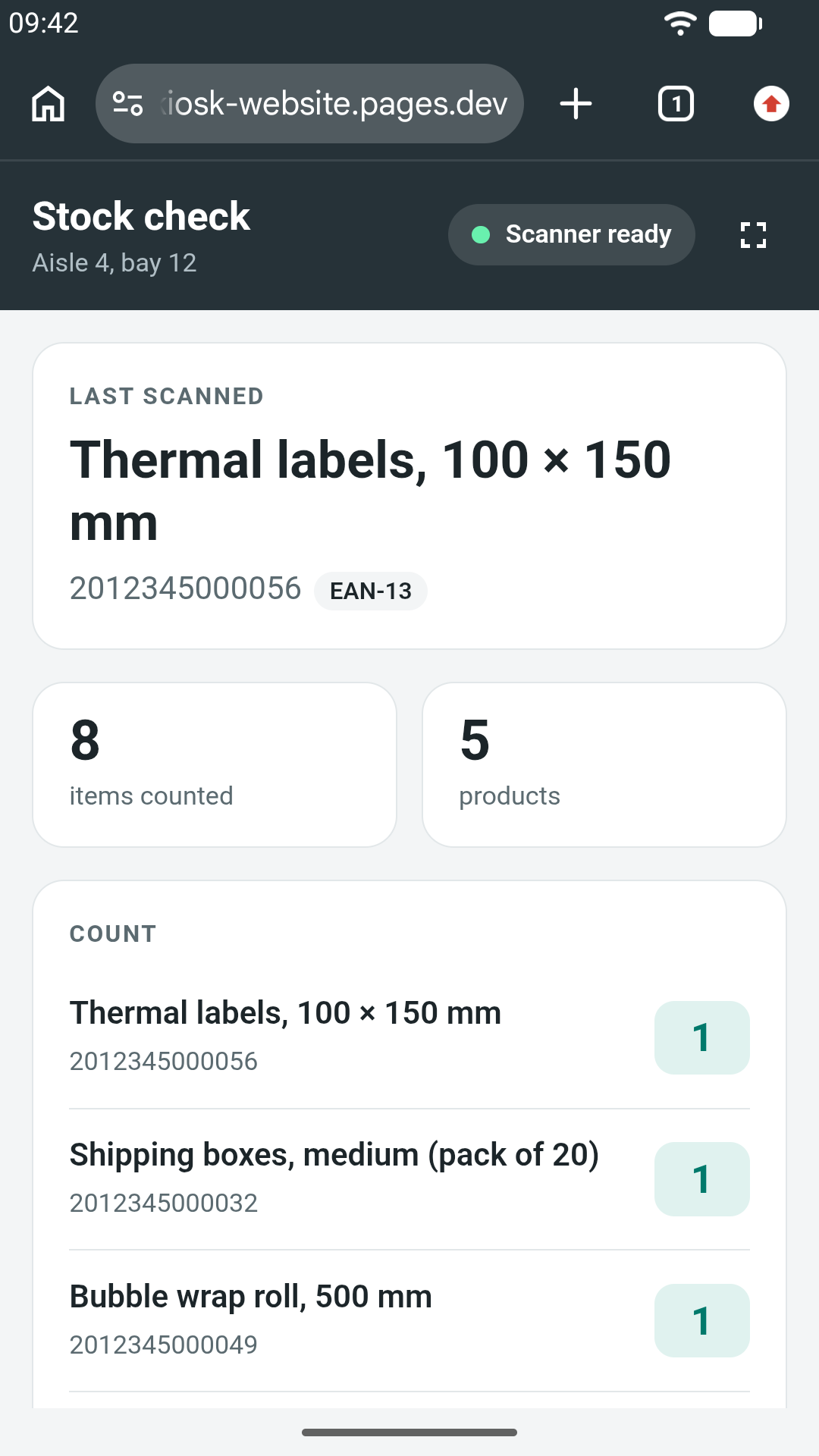
And other scanners that can broadcast their scans, in Chrome, Edge, Firefox and other browsers. Product names are trademarks of their respective owners.
Out of the box, a rugged device's scanner types each scan into the browser, as if from a keyboard. That works until someone taps in the wrong place, and the usual way round it is a special enterprise browser to deploy and manage. Barcode Scanner Bridge hands the scan itself to your web app, in the browser you already use.
Barcode Scanner Bridge runs on the same device as your browser. Your web app receives scans through a small JavaScript SDK.
Barcode Scanner Bridge
receives it, and passes it only to the websites you allowSet up each device once, and add a few lines to your web app.
From Google Play, or managed Google Play with your MDM. Once it's been opened, it starts by itself whenever the device does.
In the scanner's settings, turn on broadcast (intent) output and turn off keyboard output. On Zebra devices, Barcode Scanner Bridge can do this for you. See the settings for each scanner.
Add your web app's address under Allowed websites in Barcode Scanner Bridge, then tap Save. Only the websites you allow receive scans.
One small JavaScript file, with no dependencies. Download it below.
Your function receives scans while your page is in focus. It gets the scanned value and, on Zebra, Honeywell, Datalogic, Panasonic and others, the barcode type.
When the browser asks to connect to apps on the device, tap Allow. In Firefox, tick Remember for this site to avoid being asked on every visit.
| 1. Install | From managed Google Play. Open it after installation using your MDM's launch action, if available, or Zebra StageNow |
|---|---|
| 2. Scanner | The scanner's output setting, with its maker's own setup tools. On Zebra devices, managed configuration: Scanner setup, Set up automatically |
| 3. Websites | Managed configuration: Allowed websites |
| 6. Browser | Chrome's or Edge's LoopbackNetworkAllowedForUrls policy, with your web app's address |
| Licence | Managed configuration: Licence key |
Watch it on a Zebra TC21, from setup to scanning. Then look through the screenshots: click one to see it full size.
The SDK is one small file with no dependencies, as a script or an ES module, with TypeScript types. Your page only receives scans: it can't trigger the scanner or change its settings.
onScan gets each scan: what was scanned, the barcode type if available, and when it arrivedonStatus reports the app connection, licence and errors, and when the browser is asking for permissionopenApp() starts Barcode Scanner Bridge from a button on your pageSDK 0.1.0 · MIT licence
To try the demo on a device, first add https://www.android-kiosk.com to Allowed websites in the app.
<p id="status"></p>
<p id="scan"></p>

<script src="barcodescannerbridge.js"></script>
<script>
  BarcodeScannerBridge.connect({
    onScan: function (scan) {
      // scan.data: '2012345000018', scan.sym: 'ean13'
      document.getElementById('scan').textContent = scan.data;
    },
    onStatus: function (status) {
      // status.bridge: 'connecting', 'connected' or 'down'
      document.getElementById('status').textContent = status.bridge;
    }
  });
</script>Prices exclude VAT.
We couldn't fetch a price just now.
Enter how many licences you need (1 or more).
Fetching price...
Buying for an organisation? In the checkout, after entering your email and country, click Add VAT number to put your organisation's name, address and VAT number on the invoice. Missed it? The link in your Paddle receipt email lets you add them afterwards.
We couldn't open the checkout just now. Please try again, or contact us and we'll sort it out. (Error: [[ buyError ]])
Continue to checkout and choose Wire Transfer as the payment method, then enter your organisation's name and address. Paddle, our reseller, will email you a proforma invoice showing the full cost including any tax, which works as a quote.
You don't have to pay it: an unpaid wire transfer order simply expires, and you can come back and pay by card at any time.
Secure payment by Paddle. Buy once, with free upgrades for the lifetime of the product.
Questions about licences? See our Licensing FAQs.
Scanners that send one of the supported scan broadcasts, including models from Zebra, Honeywell, Datalogic, Panasonic, Point Mobile, Bluebird, CipherLab, Sunmi, Unitech, Urovo, Newland, M3 Mobile, Raptor and ZKC, and others. In the scanner's settings, turn on broadcast (intent) output and turn off keyboard output. On Zebra devices, Barcode Scanner Bridge can set up DataWedge for you, with your permission or your MDM's.
Chrome, Edge, Firefox and other browsers, on Android 7.0 or later. On Zebra devices, Barcode Scanner Bridge sets up the scanner for every browser installed, or only the ones you name in your MDM.
A little. Add the SDK and handle each scan in its onScan function: see the SDK. On devices without Barcode Scanner Bridge, scans are still typed into the page, so keep the text field your web app uses for them now.
For public https pages, Chrome from version 147, Edge and Firefox ask before connecting to apps on the device. Firefox asks on every visit unless you tick Remember for this site. On managed devices, your admin can allow your web app in advance with Chrome's or Edge's LoopbackNetworkAllowedForUrls policy; Firefox for Android can't be managed this way. See browser permission.
From the internet, yes: Chrome blocks http websites from connecting to apps on the device. An http web app on your local network, such as http://192.168.1.20:8080, connects for now, but Chrome plans to check those too, so https is safer.
Barcode Scanner Bridge delivers scans to your web app on the same device. It never logs scanned data or sends it off the device. Your web app may send that data to its own servers. Nothing off the device can connect to it, and only the websites you allow receive scans. Its only connections to the internet are to activate or deactivate its licence and, if it ever crashes, to send a crash report, which never includes scanned data.
Yes. Install it from managed Google Play, and set the allowed websites and the licence key with your MDM's managed configuration (also called app configuration). It needs opening once after it's installed: use your MDM's launch-after-install action, or a button in your web app. On Zebra devices it can set up DataWedge with no one asked, for zero-touch deployment. The set-up guide lists every setting.
No. Kiosk Browser has hardware scanner support of its own. Barcode Scanner Bridge is for web apps that run in an ordinary browser, such as Chrome.